
Add a Stylish Edge Glow Border Light to Your Phone Screen

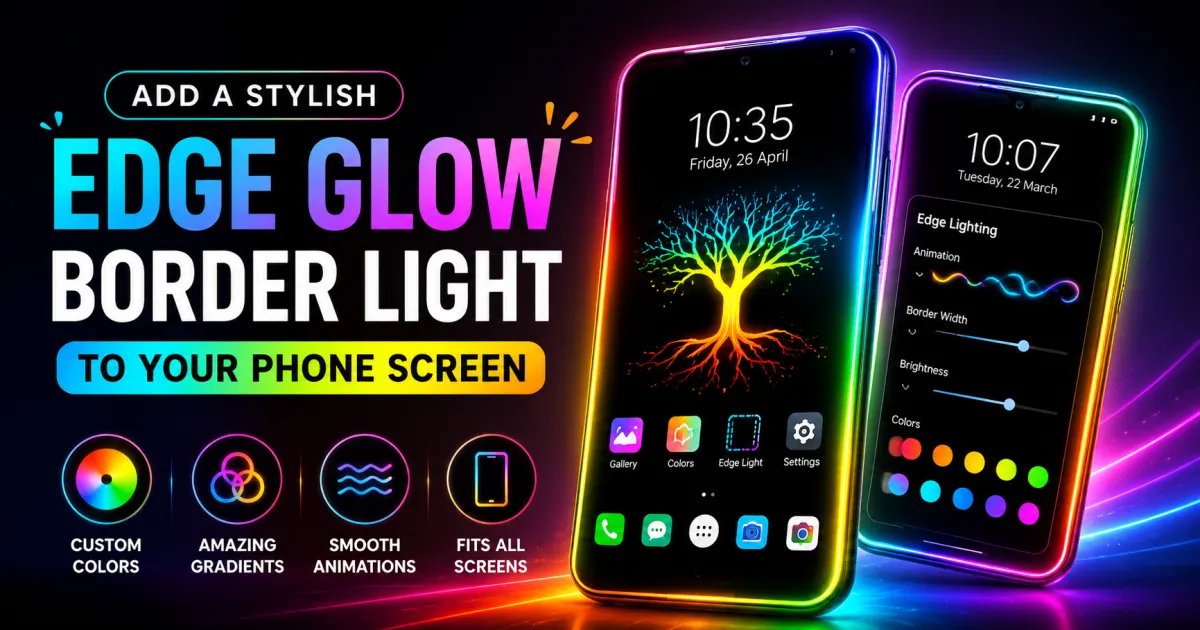
Your phone’s display does not have to look ordinary. A colorful edge glow can turn a standard Android screen into a more stylish and personalized setup, especially when you use a bright wallpaper or dark theme. The good news is that you do not need special hardware or an expensive phone to create this effect. With the right edge-lighting app, you can add a glowing border around your screen, customize its colors and animation, and even use different designs for your home and lock screens.
One practical option is EDGE Lighting – LED Borderlight, which is designed to add moving LED-style lighting around an Android phone’s screen.
What Is Edge Glow Lighting?
Edge glow lighting is a visual effect that places an illuminated border around the edges of your phone display. Depending on the app and your device, the border can use a single color, multiple RGB colors, gradients, or animated effects.
The effect is particularly attractive on phones with slim bezels or curved displays, but it can also work on phones with flat screens. Modern edge-lighting apps can adjust the border to different screen shapes, camera cutouts, notches, and aspect ratios.
Instead of changing the physical screen, the app creates the appearance of a glowing frame using live wallpapers or screen overlays.
Why Add an LED Border to Your Phone?
A glowing border is more than a decorative effect. It gives you another way to personalize the appearance of your Android device.
Make Your Screen More Personal
Default wallpapers and themes can quickly become repetitive. Edge lighting lets you create a look that matches your personality.
You can choose colors that complement your wallpaper, use subtle lighting for a minimalist appearance, or select vibrant gradients when you want something more noticeable.
Create a More Dynamic Look
Static wallpapers can make your home screen feel unchanged. Animated edge lighting adds movement without requiring you to replace your entire launcher or icon setup.
Some apps allow you to control the animation speed and direction, giving you more control over how prominent the effect appears.
Use Different Border Styles
Modern border-lighting apps are not limited to a simple glowing line. You can find different decorative shapes and lighting patterns, allowing you to create a more distinctive phone theme.
For example, this customizable edge-lighting app includes multiple border shapes, gradient combinations, animation controls, and options for adjusting the border around different notch styles.
How to Add Edge Glow Border Light on Android
The setup is usually straightforward and does not require technical knowledge.
1. Install an Edge Lighting App
Start by installing a reputable edge-lighting application from Google Play. Using the official Play Store listing is preferable to downloading an APK from an unknown website.
EDGE Lighting – LED Borderlight currently offers customizable RGB border effects and supports home-screen and lock-screen lighting.
2. Choose Your Screen Layout
After opening the app, select the screen configuration that matches your phone.
If your device has a camera hole or notch, adjust the notch settings so the lighting follows the shape of your display correctly. Proper alignment makes a significant difference to the final appearance.
3. Pick Your Colors
Choose a color combination that works with your wallpaper.
For a clean aesthetic, try white, blue, purple, or a soft gradient. For a more energetic appearance, experiment with multiple RGB colors.
The app provides dozens of gradient combinations and also allows users to create custom color combinations.
4. Adjust the Border
The border does not need to be thick or extremely bright. Adjust the width until it looks visible without distracting you from the content on your screen.
You can also change animation speed and other border settings. A slower animation generally creates a more premium-looking effect, while faster movement produces a more energetic style.
5. Add a Wallpaper
For the best result, combine the edge glow with a suitable wallpaper.
Dark or AMOLED-style wallpapers can make bright borders stand out particularly well. You can also use a personal photograph or one of the available background designs supported by the app.
How to Make Edge Lighting Look Better
The biggest mistake is using too many effects at once. A stylish setup usually depends on balance.
Match the Glow With Your Wallpaper
Look at the dominant colors in your wallpaper and choose a border that complements them. A purple-and-blue wallpaper, for example, can work well with a similar gradient instead of a completely unrelated color.
Keep the Brightness Comfortable
A very bright animated border can become distracting, particularly in dark environments. If the app provides brightness or intensity controls, use a comfortable level.
Choose a Suitable Animation Speed
Fast animations can look impressive initially but may feel distracting after extended use. A smooth, slower movement often works better for everyday use.
Consider Your Camera Cutout
Modern Android phones use different display designs, including punch-hole cameras and various notch layouts. Adjusting the border to your specific display helps prevent the lighting from looking uneven.
Can Edge Lighting Work on Any Android Phone?
Edge-lighting apps can support a wide range of Android devices, but the exact appearance and available features can vary by phone.
The Google Play listing for EDGE Lighting – LED Borderlight states that it supports different screen configurations, including Infinity-style displays, display holes, and notches. It also provides settings for adjusting notch width, height, radius, and other border parameters.
Your Android version, manufacturer, display shape, battery settings, and permission restrictions can also affect how an overlay or live wallpaper behaves.
If the effect does not appear correctly, check the app’s display, overlay, battery, and wallpaper settings before assuming that your phone is incompatible.
Does Edge Glow Drain Battery?
An animated visual effect can use more resources than a completely static wallpaper. However, the actual battery impact depends on the app, animation settings, display technology, and how frequently the effect runs.
If battery life is important, use a thinner border, slower animation, and a darker wallpaper. You can also disable unnecessary effects when you do not need them.
It is worth checking the app’s current Google Play information and privacy details before installation, since permissions and data-safety disclosures can change with updates.
Frequently Asked Questions
How do I get a glowing border on my Android phone?
Install an edge-lighting app from Google Play, select your display configuration, choose a border color and style, adjust the animation, and apply it as a live wallpaper or supported screen effect.
Can I customize the edge-lighting colors?
Yes. Many edge-lighting apps let you select individual colors, RGB combinations, or gradients. EDGE Lighting – LED Borderlight also supports custom color combinations and multiple gradient presets.
Can I use edge lighting with a phone notch or camera hole?
Yes. Apps designed for modern Android displays can provide notch and camera-cutout adjustment options. You may need to manually change the width, height, or corner settings for accurate alignment.
Does edge lighting work on the lock screen?
Some applications support lock-screen edge lighting in addition to the home screen. The availability can depend on the app, Android version, and device-specific restrictions.
Can I use my own wallpaper with edge lighting?
Yes, supported apps can allow you to combine edge lighting with your own photo or wallpaper. This can be a good way to create a personalized home-screen design.
Is edge lighting available without changing my phone’s hardware?
Yes. Edge lighting is a software-based visual effect, so you do not need to modify the physical display or install additional hardware.
Conclusion
Adding a stylish edge glow border is a simple way to give an Android phone a more personalized appearance. You can experiment with RGB gradients, animated borders, different shapes, wallpapers, and screen-specific settings until you find a style that feels right for your device.
For an easy starting point, try EDGE Lighting – LED Borderlight on Google Play and customize the border to match your screen and wallpaper. A few small adjustments to color, width, and animation speed can make the difference between an ordinary setup and a genuinely eye-catching display.



One Comment